
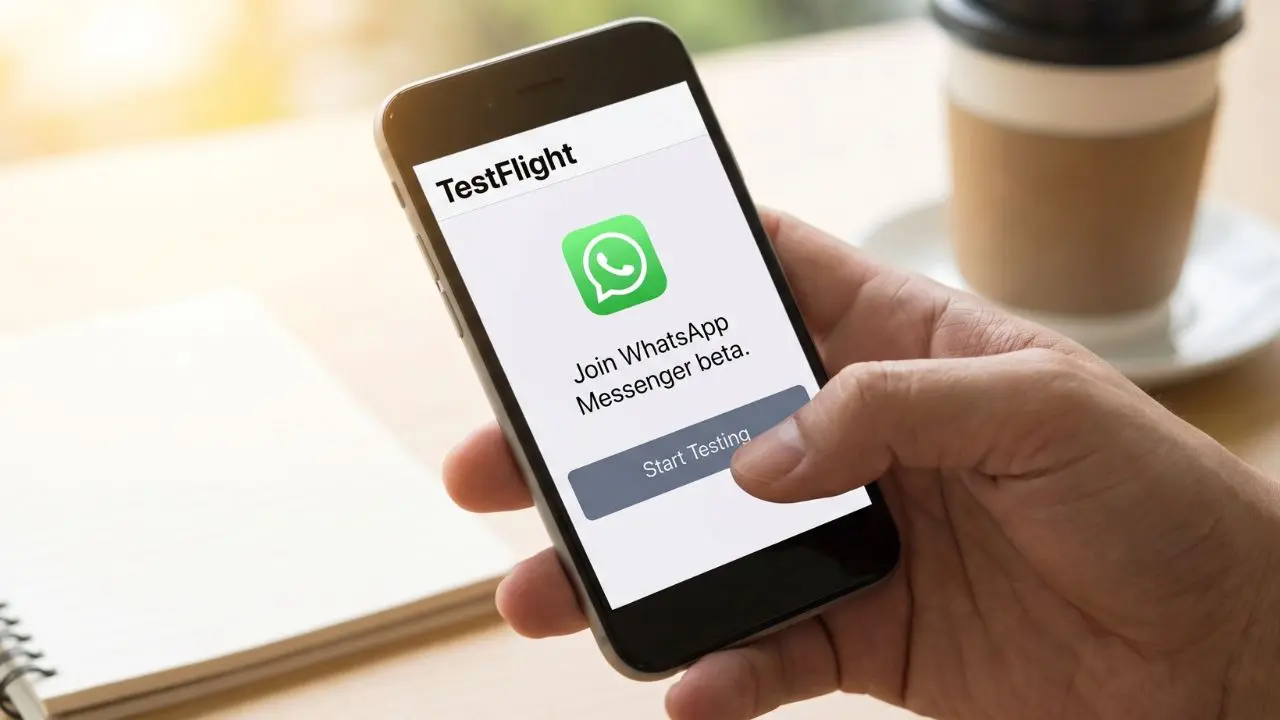
You can try new WhatsApp features weeks before others do. All you need is an iPhone and a free Apple app called TestFlight. This guide shows you the full process.
WhatsApp operate its beta program through TestFlight. Apple built this tool, and it’s safe and free to use. It only takes a few minutes to set up. Follow the steps below.
Why People Bother With the Beta
New tools often land in the beta app weeks or months early. Chat backgrounds, privacy options, and small design tweaks tend to show up here first. Testers get a preview, and WhatsApp gets real feedback before a wider release. It’s a fair trade for anyone curious about what’s coming next.
What You Need Before You Start
Before you join, you must have these basic things:
- An iPhone or iPad that has a recent iOS version
- The TestFlight app from the App Store
- A free Apple ID tied to your device
- WhatsApp’s public beta link
Once you have these ready, you can move on to the sign-up steps below.
Step-by-Step: How to Join the WhatsApp Messenger Beta
Joining is simple. Just follow these steps in order:
- First, install TestFlight from the App Store.
- Next, open WhatsApp’s beta link on your device.
- Then, tap Accept if this is your first time.
- After that, tap Install to get the beta app.
- Finally, open WhatsApp and start testing.
If you’ve joined before, this part is even faster. Just tap Update or Open, and you’ll get the newest build right away.
The invite page usually shows a short write-up of what’s being tested, plus a couple of screenshots. If your device doesn’t meet the rules, TestFlight will tell you what’s missing. Maybe you need a newer iOS version, or a different type of device.
A Quick Note on Device Rules
WhatsApp sometimes limits a beta round to one type of device. For example, some past rounds asked only for an iPad. Even then, you’re not fully shut out. As long as another device on your Apple account meets that rule, you can still accept the invite on your iPhone and use the beta there.
What You’ll Notice After You Join
What changes once you’re in? Quite a lot, really. Each beta build stays live for up to 90 days. WhatsApp uploads a fresh one when that window closes. You can check how many days are left. Just look under the app’s name inside TestFlight.
You don’t need to check for updates by hand, either. TestFlight can grab new builds on its own. Just turn on automatic updates in the app’s settings. The WhatsApp icon gets a small orange dot as soon as the beta installs. That dot is a quick reminder. It tells you that you’re using a test version, not the regular app.
Here’s something worth knowing, too. When you join through a public link, WhatsApp never sees your name or email. However, they can still see a few small details. This includes how often you open the app, when you installed it, and which version you’re running.
How Often Builds Change
First, WhatsApp typically pushes a new build every week or two. So there’s often something fresh to explore, even if it’s just a small tweak. For example, some updates bring bigger features, like calling upgrades or new chat tools. Others are simply quiet bug fixes behind the scenes. Either way, testers get a front-row seat to how the app grows over time.
If a New Build Has Bugs
Sometimes a fresh build causes trouble. Maybe the app crashes when you open it. Or maybe messages won’t send at all. If that happens, you don’t need to panic.
TestFlight keeps older builds on hand. That means you can always switch back if needed. Open TestFlight and go to WhatsApp’s page. Tap Previous Builds, and pick an older version. Tap Install to finish. This swaps out the buggy build for one that worked well before.
Back Up Your Chats First
Before your first beta install, back up your chat history. It’s a smart habit. Beta builds usually work fine with your existing data. Backing up only takes a minute, though. And it means you won’t lose anything if something goes wrong.
Share Feedback While You Test
Beta testing isn’t just about early access. It’s about helping WhatsApp catch bugs early, too. If a feature feels off, speak up about it.
You can also send feedback right through TestFlight. Or you can report bugs from inside WhatsApp’s own Settings menu. Either way, your notes help the team fix problems faster.
What if the Beta Program Is Full?
WhatsApp only has room for a certain number of testers. If the program is full, you’ll need to wait. Spots usually open up when WhatsApp removes testers who’ve gone quiet.
When new spots open, join our official WhatsApp channel for further information. That’s a good place to check back if you’re eager to join.
How to Stop Testing
Maybe beta testing isn’t for you after all. Leaving the program is easy:
- Open TestFlight and go to WhatsApp’s info page.
- Tap Stop Testing to leave the program.
- Then install the regular WhatsApp from the App Store.
After that, you’re back on the standard app. You won’t get new beta builds unless you join again later.
Is Beta Testing Worth It?
Testing early builds has real perks. You get to try new tools before anyone else. You get a say in how WhatsApp turns out, too — your feedback shapes future updates. That said, beta builds aren’t perfect. Bugs pop up now and then, and a fresh build can feel a bit rough at times.
If you’d rather keep things simple, sticking with the regular App Store version is just fine too. There’s no pressure to join. You can always sign up later, whenever you’re ready.
Either way, now you know exactly how the process works. Give it a try, and see what new WhatsApp features are waiting for you.