
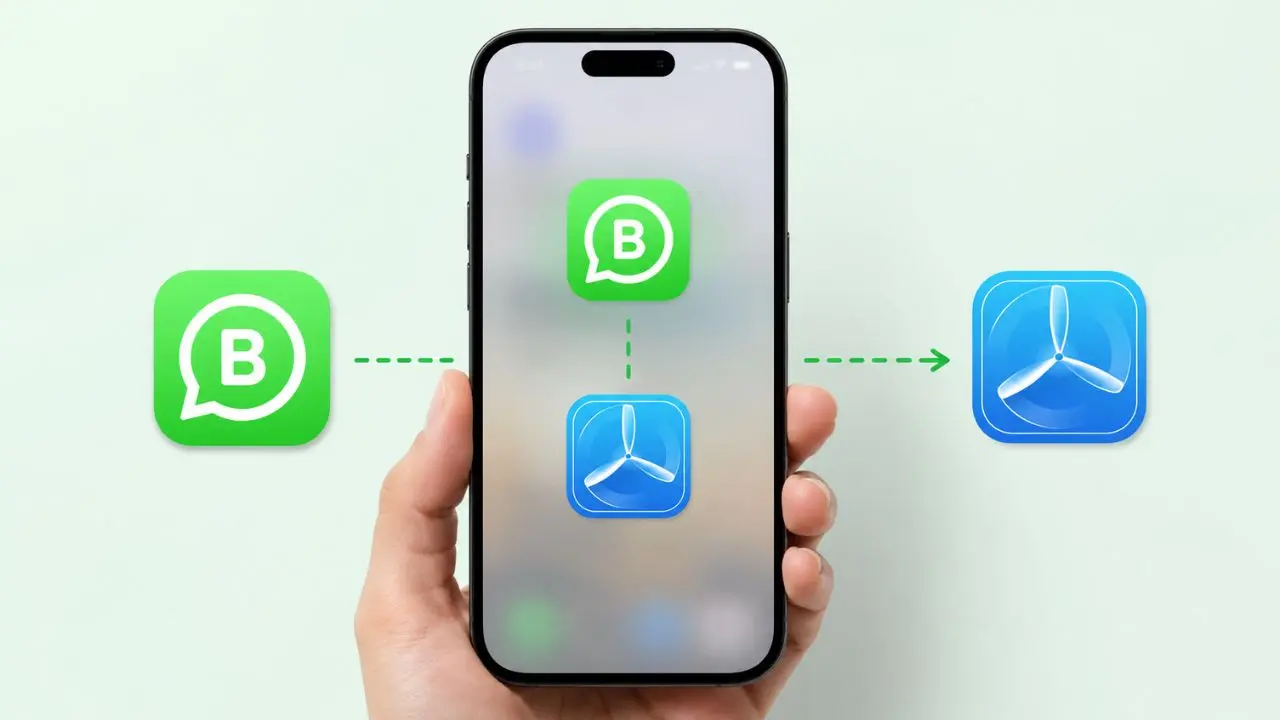
Do you want to join the WhatsApp Business beta program? You can join the beta on iOS through Apple’s TestFlight app. Anyone with the public invite link can join, try new features before they launch, and help spot bugs along the way. Here’s how to install it, what to expect, and how to leave later if you change your mind.
What the WhatsApp Business Beta Program Actually Gives You
The beta version works differently from the regular app on the App Store. Instead of waiting weeks for an update, you get new tools right away. In exchange, you agree to test them and report anything that breaks. Each build stays active for 90 days after WhatsApp uploads it, so the beta keeps refreshing as long as testers keep using it.
You can check the remaining testing period right under the app name inside TestFlight. Whenever a new build arrives, TestFlight sends a notice and explains what to test, like a new chat tool or a payment feature. If you’d rather not check manually, you can turn on automatic updates instead. That way, new builds install themselves without any extra taps.
For small business owners, this early access can actually be useful. You get a preview of tools that might change how you talk to customers, and you get that preview weeks before anyone else. Meanwhile, the feedback you send back helps shape how those tools work once they reach everyone.
Steps to Join the WhatsApp Business Beta
Getting started only takes a few minutes.
- First, download TestFlight from the App Store if you don’t already have it.
- Then, open the public invite link on the same device.
- Tap Accept, and after that, tap Install to download WhatsApp Business.
- Once the download finishes, open the app like you normally would.
If you’ve tested before, this gets even quicker. Just tap Update or Open, and you’ll land on the newest build right away.
Check the Requirements Before You Accept
Sometimes WhatsApp sets specific rules for who can join. For example, your phone might need a minimum iOS version installed before the invite works. So before tapping Accept, tap Learn More first to see what’s required.
If your main device doesn’t qualify, that’s not the end of the road. You can still join through a second device, as long as it meets WhatsApp’s criteria and stays linked to your TestFlight account. This is a handy option for anyone who upgrades phones slowly but still wants to help test new features.
What Changes After You Install It
Once the beta is running, you’ll notice a small orange dot next to the app icon. This dot simply shows you’re using a beta build instead of the standard version.
Because the beta replaces whatever version you had installed, it helps to back up your chat history beforehand, just as a precaution. That said, WhatsApp Business updates stay backward compatible, so you shouldn’t actually lose any messages when a new build arrives.
One more thing worth knowing: joining through a public invite keeps your name and email away from WhatsApp. However, they can still see basic activity, like your install date, session counts, crash reports, and the build version you’re currently running.
Rolling Back to an Older Build
Every so often, a new beta build causes trouble. Maybe the app crashes on launch, or messages won’t send. When that happens, you don’t need to wait around for the next fix.
- Open TestFlight and go to the WhatsApp Business page.
- Tap Previous Builds.
- Choose an earlier version, then tap Install.
The older build replaces the current one right away, so you’re back to a working app within a couple of minutes.
Sending Feedback to the Team
Testing only helps if people actually speak up. So whenever something feels off, or a feature works better than expected, let WhatsApp know. You can send feedback directly through TestFlight, or use the Settings menu inside WhatsApp Business.
Keep in mind, though, that anything submitted through TestFlight also reaches Apple, since feedback is part of how the TestFlight service works overall. Even small notes help, so don’t hold back just because an issue seems minor.
If the Program Is Already Full
Beta spots aren’t endless. Once the program fills up, you’ll need to wait until a current tester leaves, or until WhatsApp removes someone who’s gone inactive.
Because of this, WhatsApp usually shares an update on its official channel whenever new spots open. Following that channel is an easy way to catch the news early.
Leaving the Beta Whenever You Want
Testing isn’t a permanent commitment, and leaving takes just a moment.
- Open TestFlight and go to the WhatsApp Business info page.
- Tap Stop Testing.
- Reinstall the regular version from the App Store.
Once you finish these steps, beta builds stop arriving completely. Still, if you change your mind later, you can always request a new invite down the road.
A Quick Final Word
Joining the WhatsApp Business beta is straightforward, and it barely takes any time. You get early access to new features, and WhatsApp gets useful feedback in return. Just remember to back up your chats first, double-check the device requirements, and keep an eye on that orange dot. That way, you’ll always know exactly which version is running on your phone.
At the end of the day, testing is optional, not required. So if the process ever feels like too much hassle, stepping back out is just as easy as stepping in. Either way, the choice stays entirely in your hands.